If the employee has not been added to Barnestorm, follow the instructions inAdd, Edit, Terminate, or Reactivate an Employeebefore creating the Care Champ account.
Create a New Care Champ User
- From Barnestorm Office, go to Codes > Other Basic Codes > Employees.
- Select the employee using their four-digit employee code or name.
- Review the First Name and Last Name fields. Do not include credentials, office information, or other special characters. Hyphenated names are allowed.
- Leave the Email Address field blank so Barnestorm can generate the CareChamp login. Enter the employee’s personal or business email in Email Address 2, if available.
- Check the Care Champ box.
Note: If this box is already checked, the employee’s CareChamp account may already exist.
- Click Save.
- Click Care Champ Settings and select any settings that apply. The available settings are explained below.
- Click Save.
- Click Sync Schedules and wait for the progress bar to finish.
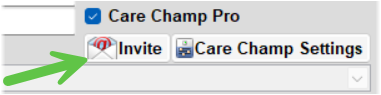
Invite the employee: After all employee information has been entered, click Invite to send the employee an email or text message with instructions for accessing the app.
Care Champ User Requirements
When the employee record is saved, Barnestorm checks the following information:
- Cell phone number, including the area code
- Program
- Job code
- Revenue code assigned to the job code
- Social Security number
CAP/PCS job codes must use revenue code 0570 or 0599. Home Health nursing job codes must use revenue code 0550.
Important: Barnestorm will display a warning if required information is missing or incorrect. After making corrections, click Save again.
When all requirements are met, Barnestorm automatically enters an email address in the Email Address field. The address combines the employee’s first and last name with a shortened version of the agency name. This field becomes locked and cannot be changed.
The generated email address is the employee’s Care Champ username. Barnestorm also generates a password, which can be found under Reports on the main menu.
Important: Do not change or replace the generated email address after the Care Champ user has been activated.
Synchronize Schedules
After the employee is set up for Care Champ, the Sync Schedules button appears below Care Champ Settings. Click this button to send existing schedules to the Care Champ app.
A green progress bar appears while the schedules are synchronizing. Do not exit the screen or select another employee until the progress bar disappears.
Deactivate a Care Champ User
When an employee is terminated, you can deactivate the employee’s Care Champ login.
Before deactivating the user: Verify that all visits have synchronized to Barnestorm Office. Visits may still show a Pending or Send Failed status for Sandata.
- Go to Codes > Other Basic Codes > Employees.
- Select the employee using their four-digit employee code or name.
- If the employee has been terminated, uncheck Active Only to include inactive employees in the search.
- Uncheck the Care Champ box and click Save.
- Click Yes when asked whether you want to remove the CareChamp user.
- Wait for the process to finish. The system removes the employee’s visits from the app and then deactivates the user. Visits already received by Barnestorm Office will remain intact.
The screen may appear unresponsive while the process is running. This is normal and may take a minute to complete.
Care Champ Settings
My Patients Only: Limits the patient list to patients assigned to the employee under Referrals > Employees. This setting applies to the Schedule New Visit screen when Hide Schedule Create is not checked.
Show Visit Timer: Displays a timer at the bottom of an active visit. It shows how long the visit has been in progress and how much scheduled time remains. This setting is recommended.
Show Patient Directions: Displays directions entered under Referrals > Directions in the patient’s contact information within the app.
Hide Schedule Create: Prevents the employee from creating a visit when no schedule is available. If this option is not checked, employees can create unscheduled visits that may not be linked to the Aide Care Plan for weekly reporting.
Location Lockdown: Requires location services to be enabled and working. The employee must start and end the visit within a one-mile radius of the patient’s home.
Use Location Lockdown with caution: Management should approve this setting before it is activated. Barnestorm cannot troubleshoot location-service problems on the employee’s device.
Lock User: Prevents the employee from logging in without removing their Care Champ credentials. Uncheck this option to restore access.
Troubleshooting
Issue: The employee cannot log in to the app, and no error message appears.
Check: Go to Codes > Other Basic Codes > Employees and select the employee. Click Care Champ Settings and verify that Lock User is not checked. If it is checked, uncheck it, click Save, and then click Sync Schedules.