Overview
Use this feature to prevent posting activity for months that have already been closed. It also allows you to apply a transaction cutoff date on reports such as 09.01 05.07 05.11 05.12 05.22 05.23.
When working with a closed accounting month, add, edit, remove visit and supply entries from the Visit Entry or Supply Charges screens only. Do not use the Medicaid Weekly or Monthly screen.
Enable the Feature
- Go to Codes > Security > Global Settings > Misc.
- Update 0535 to True.
Access the Screen
- Go to Accounts Receivable > Post Payments > Close the Accounting Month.
- The system will automatically build a list of recent closed months and cutoff dates.
Manage Closed Months
Use the options below to manage your closed months:
- Remove a Month: Select the closed month and click Remove This Date Closed (only most recent month can be removed).
- Update a Cutoff Date: Select the month, update the Date Closed at the top, then click Save This Date Closed.
- Add a New Month: Click Close The Next Month, select the cutoff date, and save.
- Max month/year to go back is 1/2025.
TipOnce a month is closed, posting activity dated within that period will be restricted. You'll receive a warning during Post Payments if the date is not allowed.
How Edited or Deleted Entries are Recorded
- Go to the Employee Activity > Visit Entry or Supplies > Supply Charges.
- Search and select the entry that needs updated.
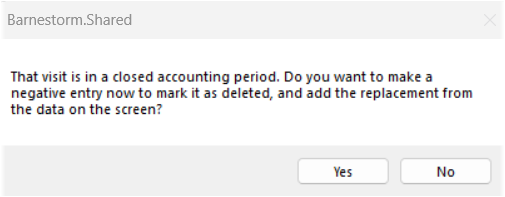
- Click Save, you'll receive a message:
- Would you like to create a negative entry to remove the one being edited, then create a new entry to replace it?
- Click Yes if you want to proceed.
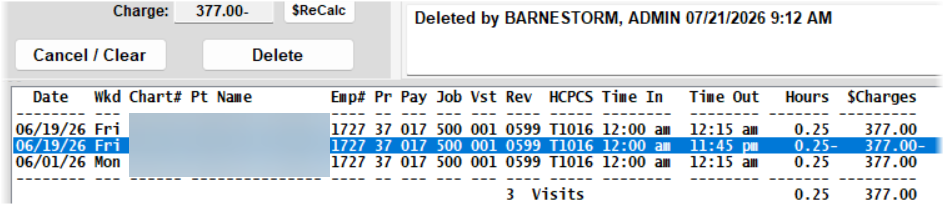
Barnestorm will create three entries:
- Original Entry - The original transaction - comment shows XXed
- Deleted Entry - A negative transaction that reverses the original entry - comment shows Deleted
- Added Entry - A new replacement entry with current Date Added, allowing it to display correctly in AR reports - comment shows Added