Post Electronic Remittance for NCTracks
NC Medicaid Direct (NCTracks) – Process Flow
Verify Eligibility
→
Visits Audited / Imported
→
Claims Created
→
Transmit to NCTracks / Post Charges
→
YOU ARE HERE
Post Remit File
Overview
Accounts Receivable > Post Payments >Post Electronic Payments: Use this screen to post 835 files, save ICNs for Medicaid rebilling, view denied visit payments, and create Accounts Receivable payment/adjustment entries in Barnestorm. This feature works after downloading the electronic remittance from Billing > HIPAA Transactions > Transmit to NC Medicaid.
Example of Medicaid Direct, not PHP/LME.
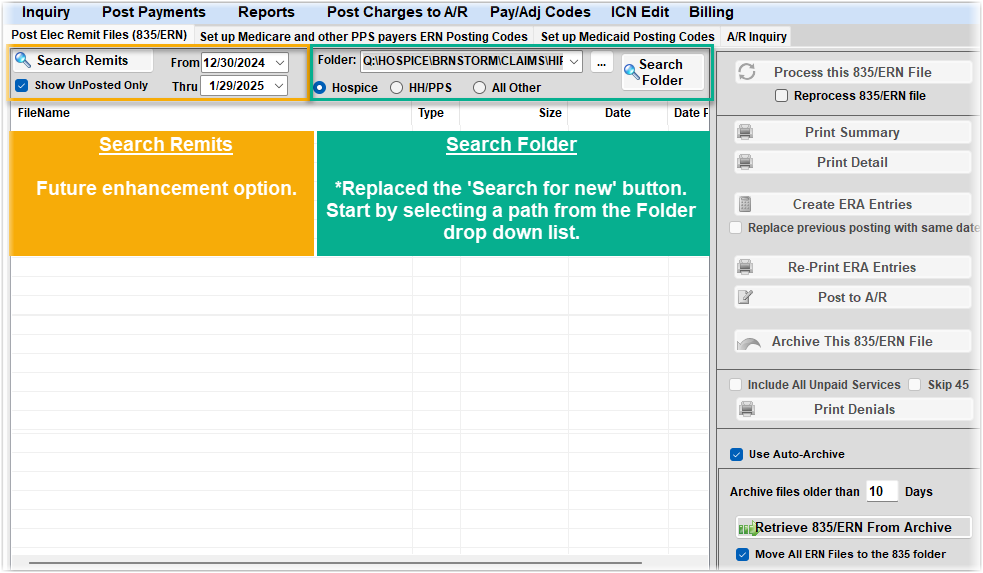
Select ERA Files
- If your agency has multiple payer types, use the selector at the top of the screen to choose All Other.
- Select the folder where the ERA files are saved.
- A list of available 835 files will appear. Select the file you need to post.
Process the ERA File
- Click Process this 835/ERN File.
- This saves ICNs for rebilling and creates service line posting details.
ImportantThe checkbox next to this button is only used if a software update requires an ERA to be re-posted, 'Reprocess 835/ERN file'.
Review & Print (Optional)
- Print Summary
- Shows amount billed, amount paid, amount noncovered, and a summary for the amount noncovered with adjustment reason codes.
- Print Detail
- Shows each patient dates of service range, with total amount billed and paid.
- Print Denials option - run this to see which visits did not pay and why.
- This shows the EOB edit code, adjustment reason code, HIPAA remark code.
- Include All Unpaid Services prints all unpaid lines.
- Skip 45 omits contract adjustments to shorten the report.
Create ERA Entries & Post to A/R
- Click Create ERA Entries.
- Only use the 'Replace previous posting...' checkbox if you are reposting the file.
- When prompted, review the A/R Posting Date (defaults to bank date) and click OK.
- There's an optional checkbox if you have multiple NPIs posting.
- Print the report if needed, then click Close.
- At this point, the process has collected the information to post. The report will show you the payment and adjustment amount for each patient/claim.
- Click Post to A/R and select OK when processing completes.
Archive the ERA File
- After posting is complete, click Archive This 835/ERN File to remove it from the list.