17.37 EVV Compliance
Overview
EVV compliance measures whether aides used approved EVV methods—GPS through the app or telephony—to clock in and out of visits. High compliance means visits followed Medicaid EVV requirements, which is important for successful billing.
Barnestorm has updated the EVV Compliance Report to provide additional options for comparing EVV data and identifying visits that may require review under North Carolina Medicaid EVV requirements.
Because available North Carolina Medicaid EVV guidance does not provide exact definitions or criteria for every compliant and non-compliant edit, Barnestorm provides several report options. Agencies can use these options to review compliance based on their needs and interpretation of EVV requirements.
How to Use the EVV Compliance Summary
Recommended Report Options: See the screenshot for the full report selections.
- Select the From and Thru dates and the report options shown in the screenshot below.
- Click Get Original Time In/Out and wait for the process to finish.
- You may receive a message if you've already ran for dates selected.
- Click Print to run the EVV Compliance Report.
With the recommended options selected a visit will show as non-compliant when: - The original EVV Time In or Time Out has been changed
- The app was used with location turned off
- Telephony was used from a phone number that does not match the patient's phone information on the referral, such as the caregiver's phone
- The visit was manually completed in office
- Note: Only Sandata, HHAeXchange, and CareBridge will be included.
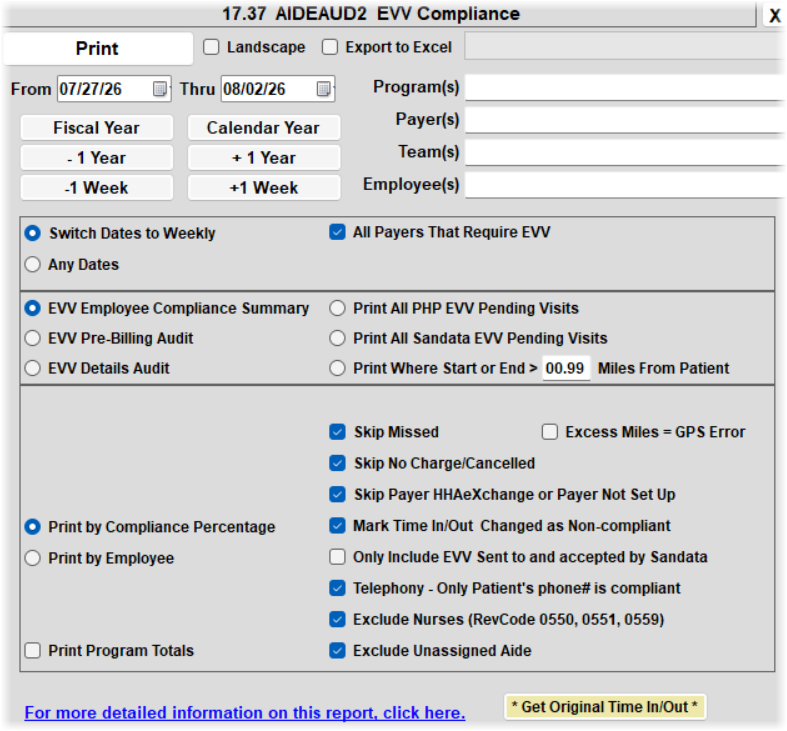
Complete Report Options
| Option | Description |
| Get Original Time In/Out | Retrieves the original EVV Time In/Out from the server for comparison with edited times.
This needs to be ran before the using reports with Mark Time In/Out Changed as Non-Compliant. |
| Print Where Start or End > ___ Miles From Patient | Flags visits started or ended beyond the selected distance from the patient's address. The checkbox does not need to be selected for the mileage comparison to work with the three main reports. |
| Excess Miles = GPS Error | Counts Excess Miles as non-compliant when selected. |
| Skip EVV Verified | Available on the Pre-Billing Audit and Details Audit only. |
| Skip Missed | Excludes missed visits from the report and compliance totals. |
| Skip No Charge/Cancelled | Excludes No Charge and Cancelled visits from the report and compliance totals. |
| Skip Payer HHAeXchange or Payer Not Set Up | Excludes these payer types, such as VA and Private Pay.
HHAeXchange payers are included when All Payers That Require EVV is selected. |
| Mark Time In/Out Changed as Non-Compliant | Checked: Edited times are counted as Error GPS or Error Telephony.
Unchecked: Time edits remain compliant. |
| Only Include EVV Sent to and Accepted by Sandata | Excludes Missed, No Charge/Cancelled, and rejected EVV visits. |
| Telephony – Only Patient Phone is Compliant | Identifies telephony visits that were not started from a phone number listed for the patient under the Referral. These visits are counted as non-compliant. |
Reading the Report
| Column | Meaning | Included in OK% |
| #Scheduled | Total scheduled visits after report filters are applied. Visits completed without an attached schedule are not included. | Base |
| OK GPS | GPS visit with no Time In/Out edits. | Yes |
| OK Telephony | Telephony visit with no Time In/Out edits. | Yes |
| No Charge or Cancelled | Visits with a No Charge visit code or that were cancelled. Select Skip No Charge/Cancelled to exclude them. | Yes |
| Missed | Scheduled visits that were not completed. Select Skip Missed to exclude them. | Yes |
| Error GPS | GPS visit with an edited Time In and/or Time Out. | Yes |
| Error Telephony | Telephony visit with an edited or missing Time In/Out.
When Only Patient Phone is Compliant is selected, telephony from a non-patient phone is also counted as an error. | Yes |
| Manual | No EVV data was found. Includes visits completed through Office and visits completed through the app without GPS. | Yes |
| Early | Visit ended early. | No |
| Not Patient Telephone | Telephony number does not match the patient's phone information on the Referral, such as when the caregiver's phone was used.
Count is included under Error Telephony. | Informational* |
| Excess Miles | Visit started or ended beyond the configured distance. Counts as non-compliant when Excess Miles = GPS Error is selected,
otherwise, it is informational. | Optional |
Special Notes for Live-In Aides
Live-in aides who are not required to use EVV should have a Job Code assigned withPlace of Service = 99. This excludes those visits from the EVV Compliance report.
Note: Job Code 121 is commonly used for live-in aides.
Report Types
The EVV Compliance screen includes three reports. Select the report based on the level of detail you need.
| Report | Use This Report To |
| EVV Employee Compliance Summary | Review each employee's EVV compliance rate for the selected date range. |
| EVV Pre-Billing Audit | Review all visits or narrow the report to visits that may need attention before billing. |
| EVV Details Audit | Review detailed GPS, telephony, flagged, and missed visit information. Approved visits are excluded. |
| Print Where Start or End > __ Miles From Patient | This can be a separate report or work with the other report types.
Mile examples 0.01 or 15.00 |
Tips for Better Compliance
- OK% reflects the number of EVV-compliant visits compared with the scheduled visits included in the report.
- Remove unnecessary or duplicate schedules, such as unused weekend rotations, to help keep the report accurate.
Keep in mind: The OK% may change depending on the report options selected. For example, usingSkip Missed or Skip No Charge/Cancelled removes those visits from the report calculation.
Pre-Billing Tips
Use the EVV Pre-Billing Audit to identify visits that may need attention before importing charges into billing.
- Select Skip EVV Verified, Skip Missed, and Skip No Charge/Cancelled to narrow the report to visits that may require review.
- Adjust options such as Excess Miles and not skipping Missed visits based on the visits you want to review.